|
| 1 | +## Introduction |
| 2 | + |
| 3 | +When developing new operators, developers need to deal with tensor objects extensively. This new utility, Tensor Inspector, mainly aims to help developers debug by providing unified interfaces to print, check, and dump the tensor value. To developers' convenience, This utility works for all the three data types: Tensors, TBlobs, and NDArrays. Also, it supports both CPU and GPU tensors. |
| 4 | + |
| 5 | + |
| 6 | +## Usage |
| 7 | + |
| 8 | +This utility locates in `src/common/tensor_inspector.h`. To use it in any operator code, just include `tensor_inspector`, construct an `TensorInspector` object, and call the APIs on that object. You can run any script that uses the operator you just modified then. |
| 9 | + |
| 10 | +The screenshot below shows a sample usage in `src/operator/nn/convolution-inl.h`. |
| 11 | + |
| 12 | +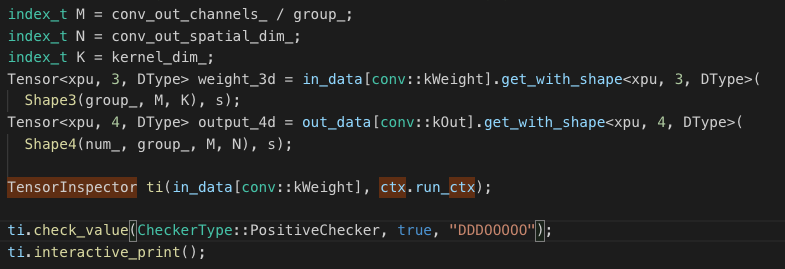 |
| 13 | + |
| 14 | + |
| 15 | +## Functionalities/APIs |
| 16 | + |
| 17 | +### Create a TensorInspector Object from Tensor, TBlob, and NDArray Objects |
| 18 | + |
| 19 | +You can create a `TensorInspector` object by passing in two things: 1) an object of type `Tensor`, `Tbob`, or `NDArray`, and 2) an `RunContext` object. |
| 20 | + |
| 21 | +Essentially, `TensorInspector` can be understood as a wrapper class around `TBlob`. Internally, the `Tensor`, `Tbob`, or `NDArray` object that you passed in will all be converted to a `TBlob` object. The `RunContext` object is used when the the tensor is a GPU tensor; in such case, we need to use the context information to copy the data from GPU memory to CPU/main memory. |
| 22 | + |
| 23 | +Below are the three constructors: |
| 24 | + |
| 25 | +```c++ |
| 26 | +// Construct from Tensor object |
| 27 | +template<typename Device, int dimension, typename DType MSHADOW_DEFAULT_DTYPE> |
| 28 | +TensorInspector(const mshadow::Tensor<Device, dimension, DType>& ts, const RunContext& ctx); |
| 29 | + |
| 30 | +// Construct from TBlob object |
| 31 | +TensorInspector(const TBlob& tb, const RunContext& ctx); |
| 32 | + |
| 33 | +// Construct from NDArray object |
| 34 | +TensorInspector(const NDArray& arr, const RunContext& ctx): |
| 35 | +``` |
| 36 | +
|
| 37 | +### Print Tensor Value (Static) |
| 38 | +
|
| 39 | +To print out the tensor value in a nicely structured way, you can use this API: |
| 40 | +
|
| 41 | +```c++ |
| 42 | +void print_string(); |
| 43 | +``` |
| 44 | + |
| 45 | +This API will print the entire tensor to `std::cout` and preserve the shape (it supports all dimensions from 1 and up). You can copy the output and interpret it with any `JSON` loader. Also, on the last line of the output you can find some useful information about the tensor. Refer to the case below, we are able to know that this is a float-typed tensor with shape 20x1x5x5. |
| 46 | + |
| 47 | +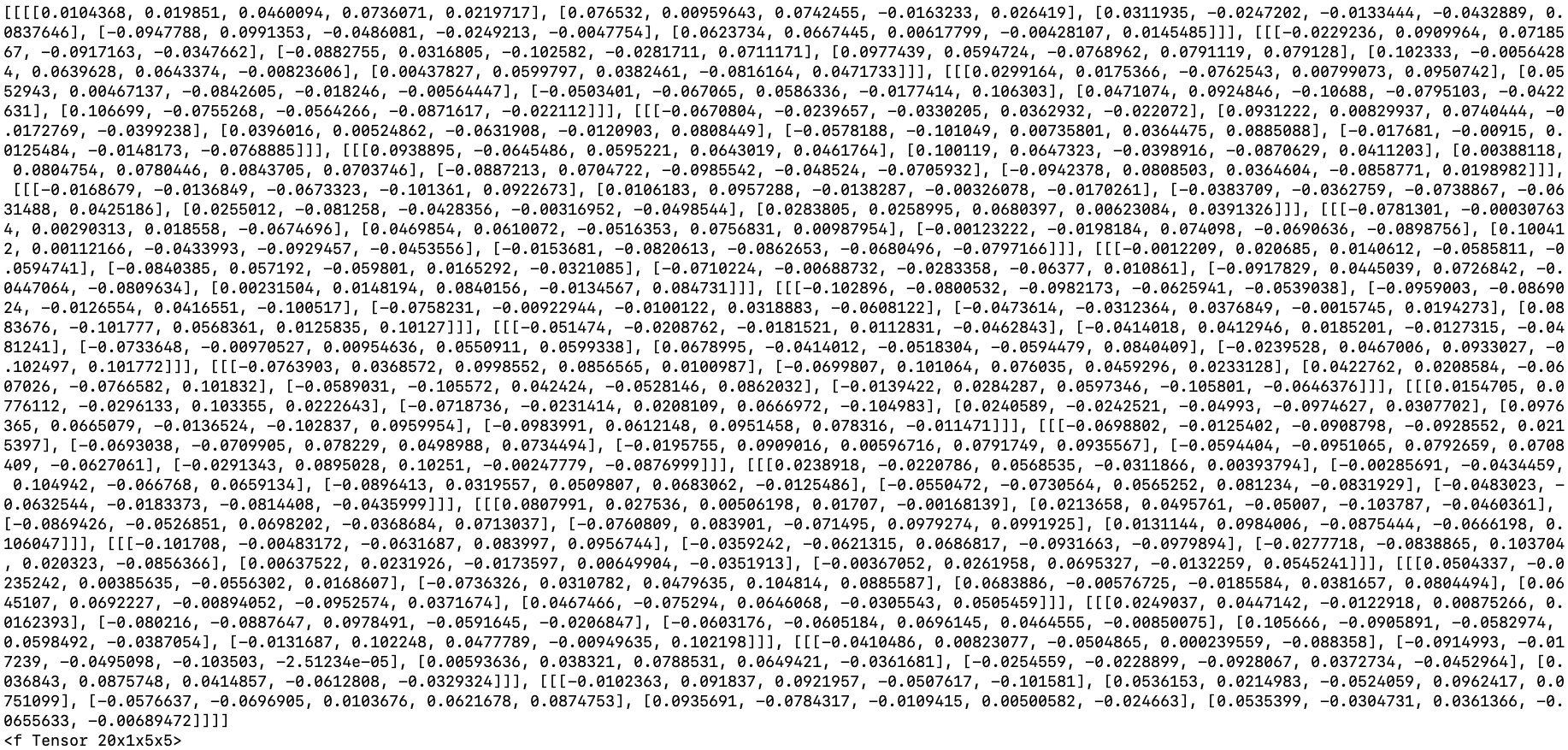 |
| 48 | + |
| 49 | +If instead of printing the tensor to `std::cout`, you just need a `string`, you can use this API: |
| 50 | +```c++ |
| 51 | +std::string void to_string(); |
| 52 | +``` |
| 53 | + |
| 54 | +### Interactively Print Tensor Value (Dynamic) |
| 55 | + |
| 56 | +When debugging, situations might occur that at compilation time, you do not know which part of a tensor to inspect. Also, sometimes, it would be nice to pause the operator control flow to “zoom into” a specific, erroneous part of a tensor multiple times until you are satisfied. In this regard, you can use this API to interactively inspect the tensor: |
| 57 | + |
| 58 | +```c++ |
| 59 | +void interactive_print(std::string tag = "") { |
| 60 | +``` |
| 61 | +
|
| 62 | +This API will set a "break point" in your code, so that you will enter a loop that will keep asking you for further command. In the API call, `tag` is an optional parameter to give the call a name, so that you can identify it when you have multiple `interactive_print()` calls in different parts of your code. A visit count will tell you for how many times have you stepped into this particular "break point", should this operator be called more than once. Note that all `interactive_print()` calls are properly locked, so you can use it in many different places without issues. |
| 63 | +
|
| 64 | + |
| 65 | +
|
| 66 | +Refer the screenshot above, there are many useful commands available: you can type "e" to print out the entire tensor, ''d" to dump the tensor to file (see below), "b" to break from this command loop, and "s" to skip all future `interactive_print()`. Most importantly, in this screen, you can specify a part of the tensor that you are particularly interested in and want to print out. For example, for this 20x1x5x5 tensor, you can type in "0, 0" and presss enter to check the sub-tensor with shape 5x5 at coordinate (0, 0). |
| 67 | +
|
| 68 | +### Check Tensor Value |
| 69 | +
|
| 70 | +Sometimes, developers might want to check if the tensor contains unexpected values which could be negative values, NaNs, infinities or others. To facilitate that, you can use these APIs: |
| 71 | +
|
| 72 | +```c++ |
| 73 | +template<typename ValueChecker> |
| 74 | +std::vector<std::vector<int>> check_value(const ValueChecker& checker, |
| 75 | + bool interactive = false, std::string tag = ""); |
| 76 | +// OR |
| 77 | +std::vector<std::vector<int>> check_value(CheckerType ct, |
| 78 | + bool interactive = false, std::string tag = ""); |
| 79 | +``` |
| 80 | + |
| 81 | +In the first API, `ValueChecker checker` is a bool lambda function that takes in a single parameter which is of the same data type as the tensor. For example: |
| 82 | + |
| 83 | +```c++ |
| 84 | +// use the same DType as in the tensor object |
| 85 | +[] (DType x) {return x == 0}; |
| 86 | +``` |
| 87 | +
|
| 88 | +This checker is called on every value within the tensor. The return of the API is a `vector` of all the coordinates where the checker evaluates to `true`. The coordinates are themselves represented by `vector<int>`. If you set `interactive` to true, you will set a "break point" and enter a loop that asks for commands. This is similar to `interactive_print()`. You can type "p" to print the coordinates, "b" to break from the loop, and "s" to skip all future "break points" in `interactive_print()`. Just like `interactive_print()`, this this interactive screen is also properly locked. |
| 89 | +
|
| 90 | +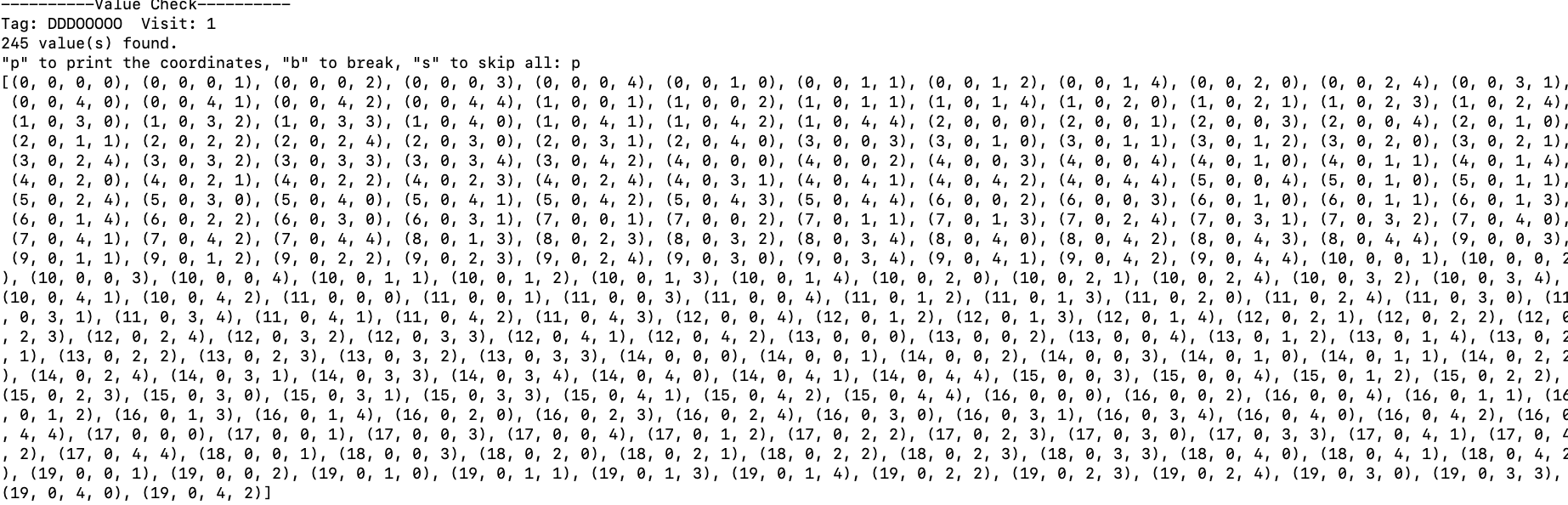 |
| 91 | +
|
| 92 | +Also, there are a bunch of built-int value checkers. Refer to the Enum below: |
| 93 | +
|
| 94 | +```c++ |
| 95 | +enum CheckerType { |
| 96 | + NegativeChecker, // check if is negative |
| 97 | + PositiveChecker, // check if is positive |
| 98 | + ZeroChecker, // check if is zero |
| 99 | + NaNChecker, // check if is NaN, will always return false if DType is not a float type |
| 100 | + InfChecker, // check if is infinity, will always return false if DType is not a float type |
| 101 | + PositiveInfChecker, // check if is positive infinity, |
| 102 | + // will always return false if DType is not a float type |
| 103 | + NegativeInfChecker, // check if is nagative infinity, |
| 104 | + // will always return false if DType is not a float type |
| 105 | + FiniteChecker, // check if is finite, will always return false if DType is not a float type |
| 106 | + NormalChecker, // check if is neither infinity nor NaN |
| 107 | + AbnormalChecker, // chekck if is infinity or nan |
| 108 | +}; |
| 109 | +``` |
| 110 | + |
| 111 | +Remember the second API? |
| 112 | + |
| 113 | +```c++ |
| 114 | +std::vector<std::vector<int>> check_value(CheckerType ct, |
| 115 | + bool interactive = false, std::string tag = ""); |
| 116 | +``` |
| 117 | +
|
| 118 | +You can simply pass in a value from `CheckerType` where you would have passed in your own lambda if you were using the first API. |
| 119 | +
|
| 120 | +### Dump Tensor Value |
| 121 | +
|
| 122 | +Sometimes, you might want to dump the tensor to a file in binary mode. Then, you might want to use a python script to further analyze the tensor value. Or, you might do that simply because a binary dumps has better precision and is faster to load than if you copy-paste the output from `print_string()` and load it as a `JASON` string. Either way, you can use this API: |
| 123 | +
|
| 124 | +```c++ |
| 125 | +void dump_value(std::string tag); |
| 126 | +``` |
| 127 | + |
| 128 | +This API will creat a file with name "{tag}_{visit_count}.npy", where tag is the name that we give to the call, and visit is the visit count, should the operated be called more than once. |
| 129 | + |
| 130 | +The output format is `.npy`, version 1.0. This is the Numpy format and we can easily load it with the following code: |
| 131 | + |
| 132 | +``` |
| 133 | +import numpy as np |
| 134 | +a = np.load('abc_1.npy') |
| 135 | +print(a) |
| 136 | +``` |
| 137 | + |
| 138 | +Let's see the how it runs: |
| 139 | + |
| 140 | +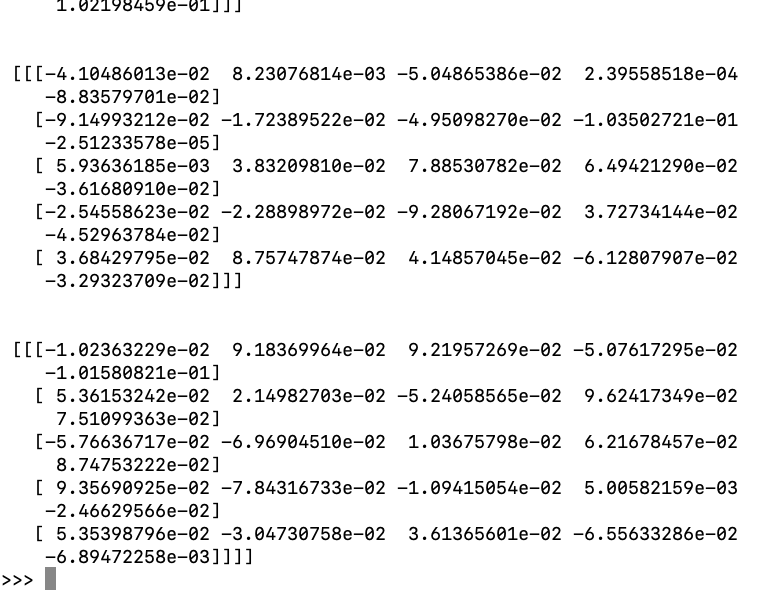 |
| 141 | + |
| 142 | +Notice: in `interactive_print()`, you could also do value dumping with command "d". You will be prompt to enter the `tag` value: |
| 143 | + |
| 144 | + |
| 145 | + |
| 146 | + |
| 147 | + |
0 commit comments