How To Create Your NameBright Password
Congratulations on purchasing your domain at HugeDomains!
An important step in taking control of your new domain is setting a secure password for your account at NameBright. You received a welcome email from HugeDomains containing a link to access your domain at NameBright, where you can manage your domain settings, including setting a password for this new account.

Setting Your Password Using the HugeDomains Email Link
When HugeDomains delivers your recently purchased domain to an account for you at NameBright an email is mailed to you to notify you that your domain has been delivered. This email contains your username to use at NameBright and a link to set your password for this account to access your domain.
- Within the email body, find the link labeled "Set my password".
- Clicking this link will direct you to NameBright to be prompted to create a password for your account.
- Choose a strong password that is unique to this account and difficult to guess.
- Once you've created a secure password, confirm it by entering it again in the designated field.
- Click "Reset" to complete the process.
- You can now login to your NameBright account to access your domain.
Resending Your Password Reset Link
If you can't locate the original HugeDomains email containing the password set-up link, or if the link has expired, don't worry! You can easily resend it yourself at NameBright to get access to your account right away!
- Head over to NameBright.com.
- In the top right corner, click on the "Login" button. If you are on mobile it will be a round circle icon also in the top right corner.
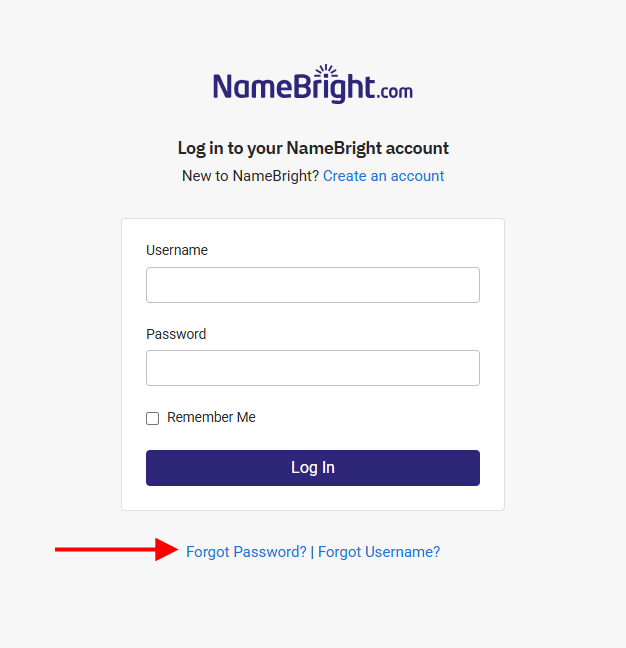
- On the login page, look for the option on the bottom of the page labeled "Forgot Password?". Click on it.
- Enter your username associated with your domain purchase or the email address you used during the purchase process. Your username can be found in your HugeDomains Domain Access email or using the Forgot Username link.
- Click "Send Reset Link."
- NameBright will send a new password reset email to your email. This email will contain a unique link that allows you to set a new password for your account.
Next Steps
Once you've set your password, you can access your NameBright account to manage your domain settings, such as setting up DNS records and configuring email forwarding.
If you continue to have any issues setting your password with NameBright or any other issues, you can contact them directly on their Contact Us page.
NameBright Password Reset Gallery
If you are having trouble finding any of the locations mentioned in the above steps, this is a photo gallery of where to find the steps.