Changelog

Feature Release: Jump to Site Search 

Navigating large portfolios just got significantly faster. We have implemented a persistent “Jump to” search field across all pages to reduce the number of clicks required to move between site management screens.

Key Features

  • Global Site Search: A dedicated search field is now available at the top of every site details page.
  • Real Time Filtering: As you type a site name or URL, a dropdown menu dynamically updates to show only matching results.
  • One Click Navigation: Selecting a site from the dropdown takes you directly to that site’s details page, bypassing the main site list.
  • Full List Shortcut: A new “All Sites” link at the bottom of the search results provides a quick way to return to the primary Sites overview page.

How to Get Started 

To use the new search feature, log in to MyPressable and navigate to any site details page. The “Jump to Site” field is located at the top of the interface for immediate use.

For a detailed walkthrough of this and other navigation enhancements, please visit our Knowledge Base.

Feature Release: Site Details UI Overhaul 

We are excited to announce a major update to the Site Details UI, focusing on improved navigation, clearer visual feedback, and streamlined administrative workflows. This update replaces several legacy layouts with a modern, modular design optimized for both desktop and mobile users.

Key Visual & Navigation Changes

  • Categorized Sidebar: Navigation has been moved from the main work area to a persistent sidebar, grouped by category (Configuration, Site Health, Logs, etc.).
  • Consolidated Account Settings: User profile and account wide settings have been relocated to a standard top-right dropdown menu for better global accessibility.
  • Sticky Tooling: The “Jump to Section” and “Back to Top” buttons remain fixed during scrolling to enhance accessibility on content heavy pages.
  • Work Card System: The overview page now utilizes “Work Cards” to provide clear, immediate visual cues regarding the status of site features.

Workflow Improvements

  • Steps Wizard Implementation: Processes for “Create a New Site,” “Migrate Site,” and “Data Transfer” (formerly Data Sync) now utilize a multi-step wizard to reduce user error and provide clearer progress indicators.
  • Enhanced Collaborator Management: Adding collaborators is now a guided 4-step process, making it simpler to assign specific site capabilities and permissions.
  • Centralized Site Tools: Frequently used tools like Maintenance Mode, PHP settings, and Bash Commands are now housed in quick-action modals to keep users in their workflow.
  • New Environment Panel: A dedicated panel provides at-a-glance status and quick switching between sandbox, staging, and production versions of a site.

How to Get Started 

The new UI is now active for all customers. Simply navigate to any site within MyPressable to begin using the updated interface.

For more details on navigating the new sidebar and using the Steps Wizards, please visit our Knowledge Base.

Feature Release: WordPress MCP Adapter (Developer Preview)

We are introducing the WordPress MCP (Model Context Protocol) Adapter, an experimental tool designed to bridge WordPress installations with the emerging MCP standard. This adapter provides a foundational layer for developers to explore how AI assistants can programmatically discover and read site data.

Key Features

  • Direct Environment Interaction: When enabled, the MCP adapter provides a secure gateway for AI tools to read and interact with your WordPress site.
  • Bulk Deployment Settings: Within the WordPress MCP settings page, you can toggle the “Install on Existing Sites” or “Install on Future Sites” options to manage your entire portfolio at once.
  • Plugin Management Integration: Once enabled in MyPressable, you can verify the status of the plugin directly within your site’s WordPress settings.
  • On-Demand Activation: Quickly deactivate the adapter across your sites if you need to pause AI interactions.

Important Preview & Security Information

The WordPress MCP Adapter is currently in a Developer Preview phase. This tool is intended for experimentation and testing of the Model Context Protocol. Please note:

  1. Read-Only Access: The current version is limited to read-only interactions and does not support active site management or file modification.
  2. Security Disclaimer: Activation is at the user’s discretion. We strongly advise users to monitor AI interactions closely and ensure they follow security best practices to manage data exposure within their specific AI ecosystem.

How to Get Started

To begin experimenting with the MCP Adapter, log in to MyPressable, navigate to Tools → WordPress MCP, and update your installation settings.

For detailed documentation on setup, please visit our Knowledge Base.

Feature Release: Integrated Cron Job Management

We are excited to announce the launch of native Cron Job Management within MyPressable. This update provides a user-friendly interface to automate repetitive tasks and schedule scripts directly on your Pressable sites.

Previously, managing custom cron jobs required more manual overhead. Now, you can handle the entire lifecycle of a cron job, from creation to deletion, right from your site’s dashboard.

Key Features

  • Native Dashboard Interface: A new Cron Jobs link is now available in the left-hand navigation for every site.
  • Simplified Scheduling: Quickly deploy new jobs by selecting from pre-set frequencies (Hourly, Daily, Twice Daily, or Weekly). Our system handles the timing to ensure optimal performance.
  • Full Management Control: View a comprehensive list of all active cron jobs for a specific site and delete them instantly when they are no longer needed.
  • Pressable API Support: We’ve expanded our API to include endpoints for listing, adding, and deleting cron jobs, allowing you to integrate scheduling into your own development workflows. View API Docs.

Technical Note: When deploying a cron job with multiple lines, please ensure each line ends with a semicolon (;) for proper execution.

How to Get Started 

To manage your site’s schedules, log in to MyPressable, navigate to any site, and select Cron Jobs from the sidebar.

For more details on frequencies and setup, visit our Knowledge Base.

Introducing Bash Command Bookmarks

Managing multiple WordPress sites often involves repetitive tasks, such as cache clearing, database optimization, and security audits, that require complex Bash commands. To streamline this workflow and reduce the margin for error, we are excited to introduce Bash Command Bookmarks.

This new feature provides a centralized, searchable repository for your frequently used commands directly within MyPressable.

Key Features

  • Centralized Management: Create, edit, and delete commands from the Bulk Operations section. Users can “Bookmark Only” for future use or “Bookmark and Run” for immediate execution.
  • Global Access: Once a command is bookmarked, you can run it across multiple sites or from a specific site’s Advanced settings.
  • Detailed Reporting: Export a Response CSV for any Bash Command operation to see the exact output and status from every individual site involved.
  • API Support: Access and execute your bookmarked commands programmatically via the Pressable API.

Important Note: Because of the custom nature of Bash, Pressable does not track internal script errors. We advise users to test commands on a single environment before performing bulk operations and to use the Response CSV to verify successful execution.

How to Get Started 

Ready to automate your workflow? Log in to MyPressable and head to Tools → Bulk Operations to create your first command bookmark.

For a step-by-step walkthrough on creating and managing your saved commands, check out our Knowledge Base.

Streamline Your Security: Introducing Login with Passkeys

We are excited to announce support for Passkeys, a faster and more secure way to access your Pressable account. By using device-bound credentials like Face ID, Touch ID, or Windows Hello, you can now sign in without ever typing a password or waiting for a one-time code.

This update is perfect for users looking to eliminate “password fatigue” while significantly increasing their account protection against phishing and unauthorized access.

Why Passkeys?

Securing your account requires a combination of a strong password and a secondary 2FA step (Authenticator App or Email). Unfortunately, this often leads to login friction and “OTP delivery” delays. While these security measures are still required, you now have Passkeys as an optional layer that keeps you secure while allowing for quicker access to MyPressable.

This means:

  • Faster Access: Log in in seconds using your fingerprint or facial recognition.
  • Enhanced Security: Passkeys are unique to Pressable and cannot be guessed, reused, or phished.
  • No More OTPs: When you log in with a passkey, you skip the manual 2FA challenge entirely.

What’s New

1. Seamless 2FA Bypass

If you have an authentication app, SMS, or email 2FA enabled, you can now use a passkey to bypass these manual steps. On the 2FA challenge screen, simply select “Log in with passkey” to verify your identity instantly using your device.

2. Centralized Passkey Management

You have full control over your credentials. Within your Pressable Dashboard, navigate to Security > Passkeys in the left-hand navigation to:

  • Register a new passkey (e.g., your MacBook’s Touch ID or a YubiKey).
  • View all active passkeys associated with your account.
  • Rename or remove passkeys as your devices change.

3. Proactive Setup

Starting today, you may see a prompt after logging in inviting you to add a passkey. This one-time setup ensures your future logins are as smooth as possible.

⚠️ Compatibility Note: Supported Browsers

Passkey technology relies on modern browser capabilities. To use this feature, please ensure you are using one of the following versions or newer:

  • Chrome 129+ (September 2024)
  • Firefox 119+ (October 2023)
  • Safari 18.4+ (March 2025)

Using an older browser? No problem. You will continue to log in using your standard email and password followed by your existing 2FA method.

How to Get Started

Ready to ditch your password? Log in to your Pressable Dashboard and head to your Security Settings to register your first device.

For a step-by-step walkthrough on setting up passkeys for your specific device, check out our Knowledge Base.


New GitHub Integration: Configurable Deployment Paths & .deployignore Support

We are excited to announce a major update to our GitHub integration that fundamentally changes how you deploy code to Pressable. This update introduces configurable deployment paths, support for diverse repository structures, and native .deployignore support, giving you precise control over your development workflow. This update is especially useful for teams and agencies using monorepos, custom build pipelines, or non-standard WordPress setups.

What’s New

Previously, Pressable mirrored your repository directly to wp-content, which limited flexibility for modern workflows. This update removes those constraints and introduces three key improvements:

1. Configurable Deployment Paths

You can now map any folder in your repository to any specific folder on your server.

  • Repository Subdirectory: Choose exactly which folder to deploy from (e.g., deploy only a dist/ folder or a specific theme inside a monorepo).
  • Destination Path: Choose exactly where files go (e.g., deploy directly to wp-content/themes/my-custom-theme/ without affecting the rest of the directory).

2. Support for Any Repository Structure

Whether your repository contains a full WordPress installation, just a wp-content folder, or strictly a single theme or plugin, the system can now accommodate it. This allows you to organize your version control however you see fit without being forced into a specific directory structure.

3. .deployignore Support

For fine-grained control over what lands on your server, you can now add a .deployignore file to your repository root. Similar to .gitignore, this file allows you to:

  • Protect specific files or directories from being modified or deleted during deployment.
  • Exclude build tools (e.g., node_modules/, .github/).
  • Prevent local configurations from overwriting production settings.

⚠️ READ BEFORE ENABLING: Sync-As-Is Behavior

This update introduces a “Sync-As-Is” philosophy. Files that exist on the server but NOT in your GitHub repository will be deleted from the destination path during deployment.

This replaces the old “Include/Delete” toggles. If you need to preserve files on the server that do not exist in your git repository (such as third-party plugins, specific configurations, or uploads), you must use a .deployignore file to protect them from the sync process.

Availability

  • New Users: All accounts created on or after December 10, 2025, have this feature enabled automatically.
  • Existing Users: You can opt-in to the new integration on a site-by-site basis. Please contact Customer Support to activate it for your account.

Learn More

For a deep dive on how to configure your paths, the correct syntax for .deployignore files, and migration guides for existing sites, please consult our Knowledge Base.

Introducing: DupliKit Sites

We’re excited to launch DupliKits, a new feature designed to streamline agency and developer workflows by eliminating repetitive setup work.

DupliKits are reusable template sites that allow you to instantly deploy new WordPress sites with your preferred themes, plugins, and settings already pre-configured. This is the perfect solution for teams who need to maintain consistency across client projects and want to launch new, standardized sites in seconds.

You can create a DupliKit from scratch or, for a more powerful workflow, convert a fully configured Sandbox Site directly into a template.


For a detailed guide on how to create, manage, and deploy new sites from your templates, please read our full knowledgebase article.

GitHub Integration Update: Now Syncing Must-Use (MU) Plugins

We’re excited to enhance our GitHub integration to provide even more comprehensive control over your development workflow. You can now sync your wp-content/mu-plugins directory directly from your GitHub repository, just as you do with themes and plugins.

Why It Matters

Must-use plugins are often essential for a site’s core functionality, and managing them should be as seamless as the rest of your development process.

  • Increase Consistency and Reliability: Version-controlling your mu-plugins ensures that every environment, from staging to production, is perfectly in sync. This simplifies team collaboration and provides a reliable history for every code change.

How It Works

Best of all, there are no new steps to learn. If you’re already using our GitHub integration, the process works exactly the same.

Our integration now automatically detects and syncs the wp-content/mu-plugins directory from your connected repository. Simply include the directory in your repo, push your changes, and our system handles the rest safely and efficiently.

This update is part of our ongoing commitment to providing powerful, developer-first tools that streamline your workflow and help you build amazing websites.

Introducing: Global Site Tags

We are thrilled to launch Global Site Tags, a powerful new way to organize, filter, and manage your entire portfolio of websites. Designed with agencies and customers managing numerous sites in mind, this feature brings a new level of clarity and efficiency to your workflow, making it easier than ever to keep your sites perfectly organized.

Why It Matters

Global Site Tags provide a flexible and visual system to categorize your sites based on your unique needs. This unlocks a more intuitive and streamlined way to manage your work.

Here’s a look at what you can do:

  • Centralized Tag Management: A new Tags section in your main menu gives you a central hub to create, edit, and manage all your tags. Assign a unique color to each tag for at-a-glance identification across your site listings.
  • Powerful Bulk Actions: Streamline your workflow by applying or removing tags across multiple sites at once. Whether you’re tagging all sites for a specific client or updating a project’s status, you can do it in just a few clicks.
  • Flexible Permissions for Teams: Empower your team with the new “Manage Tags” permission. Account Owners can grant collaborators the ability to help organize the portfolio, ensuring everyone is on the same page while you maintain full control.
  • Seamless Site-Level Integration: Manage tags directly from the Site Details page. You can instantly see which tags are applied, create new ones on the fly, or attach existing tags from your library, making on-the-go organization a breeze.
  • Enhanced Visibility: Your color-coded tags now appear directly under each site in your main site list, giving you an immediate visual overview of your portfolio at a glance.

How to Get Started

Look for the new Tags item in your main navigation menu. From there, you can create your first tag, pick a color, and begin applying it to your sites. Explore the options on the Site Details page to see how easily you can manage tags for individual sites.

Global Site Tags are designed to grow with you, providing a scalable solution for managing your work, whether you have ten sites or ten thousand. We can’t wait to see how you use them to create your perfect workflow.

Introducing: Egress Firewall Rules

We are elevating our security offerings with the release of Egress Firewall Rules. This powerful new feature gives you direct control over your website’s outbound network traffic, allowing you to define exactly which external services your site is permitted to contact.

Why It Matters

A truly robust security strategy includes managing your site’s outbound connections. By creating a curated list of approved communications, you gain an exceptional level of control and peace of mind. Here’s how:

  • Ensure Data Integrity: Protect your valuable data by creating an “allow-list” of approved destinations. This ensures that information only flows to the services you explicitly trust, affirming your site’s security.
  • Proactive Security Configuration: Define a clear security perimeter for your website. By specifying which external services are essential for your site’s operation, you create a clean, predictable, and highly secure environment.
  • Gain Full Transparency and Control: Understand and manage every external connection your site makes. This gives you full authority over how your plugins and themes interact with other services, aligning your site’s behavior perfectly with your business policies.

How to Use It

This powerful feature gives you precise control over your site’s connections. We recommend confirming your site’s essential services (like payment gateways or plugin update servers) to ensure they operate smoothly as you build your rules.

You can find the new controls in your site’s dashboard:

  1. Log in to your account and navigate to the site you want to configure.
  2. Click Security in the side navigation menu.
  3. In the Egress Firewall Rules panel, you can begin building your list of approved connections.
  4. Add a rule by specifying the destination host (IP address or domain), port, and protocol (TCP/UDP) you wish to allow.
  5. Save your rules to apply them instantly. We recommend testing your site’s key functions after adding new rules to ensure everything works as expected.

This new level of control is part of our ongoing commitment to providing you with the most secure and robust platform possible for your websites.

Introducing: APM Insights

We’re excited to announce the release of APM Insights, putting our powerful Application Performance Monitoring (APM) tools directly into your hands. You now have the power to fine-tune your site’s performance and gain a deeper understanding of what’s happening under the hood of your websites.

Why It Matters

Curious about what drives your site’s speed? APM provides the answer. It moves beyond standard speed tests to give you code-level visibility into your WordPress site’s performance, revealing exactly how every component contributes to the end-user experience.

With APM Insights, you can discover key opportunities for optimization:

  • Analyze Plugin & Theme Performance: Understand the performance profile of every plugin and theme, ensuring your site is running as efficiently as possible.
  • Optimize Database Queries: Get detailed insights into database operations, allowing you to refine queries for maximum speed and responsiveness.
  • Streamline External Requests: See how connections to third-party services impact your site’s load time and find new ways to improve them.

With these deep insights, you can make targeted enhancements that lead to an even faster website and a better experience for your visitors.

How to Use It

For customers authorized to manage site performance, getting started is simple:

  1. Log in to your MyPressable account and navigate to the site you want to analyze.
  2. Click Performance in the side navigation menu, then select APM Insights.
  3. Choose a monitoring duration from the dropdown and then click the Activate button to begin the monitoring session.
  4. Once activated, click the View APM Dashboard button to dive into the data and begin optimizing your site.
  5. You can click Deactivate at any time to end the session.

Giving you access to the same powerful tools our experts use is a crucial step in helping you build and maintain fast, successful websites. As always, if you have any questions, our support team is here to help.

Introducing: PHP File System Permissions

We’ve added a powerful new control to your Pressable dashboard: PHP File System Permissions.

Previously only available by contacting our amazing support team, this feature is now available to adjust on demand in your MyPressable Control Panel—giving you more control over how PHP interacts with your site’s filesystem.

You can now choose from three permission modes:

  • rw (read/write) – The default, allowing PHP to read and write freely.
  • ro (read-only) – Great for situations like manual site recovery or when you want to lock down your site’s file system.
  • loggedin – A smart middle-ground: only logged-in, authorized PHP requests can write. Ideal for enhancing security while keeping things like plugin and theme updates working smoothly.

Whether you’re cleaning up a compromised site, hardening your security posture, or just want more fine-grained control—this update gives you the flexibility to do it.

You’ll find this option in your site’s settings, and it’s also available via our API for full automation support.

PHP Filesystem Permission


Consider it one more switch flipped in your favor. We hope you find it helpful!

Introducing: Basic Authentication

When you’re building or testing a site, not everything is ready for public eyes. Sometimes you need a way to share progress privately—without publishing, without workarounds, and without overcomplicating things.

That’s where Basic Authentication comes in.

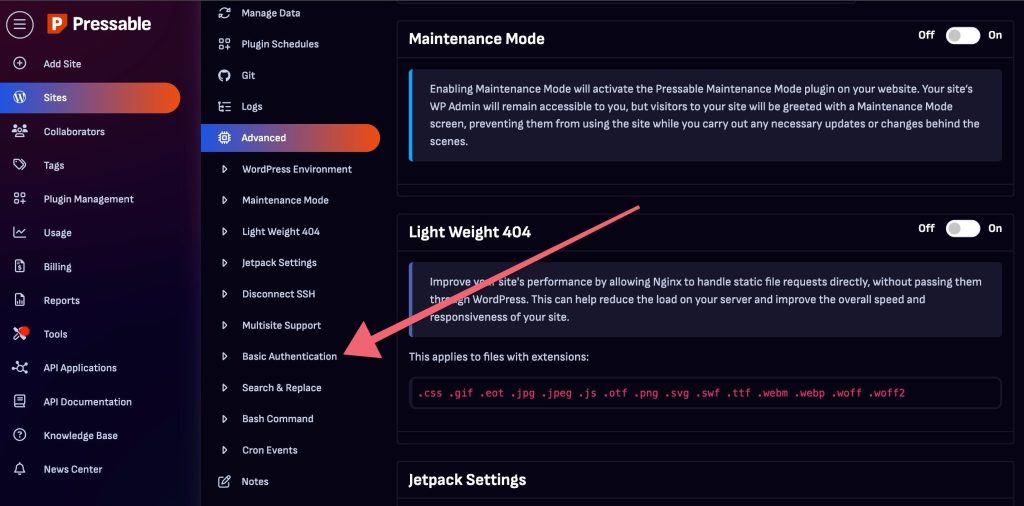
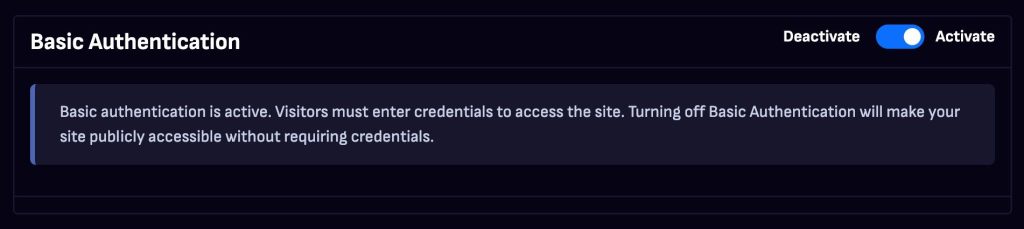
Now available in the My Pressable Control Panel, Basic Authentication lets you restrict access to your site with a simple username and password prompt. It’s ideal for staging environments, early client reviews, or internal QA—anytime you want to show the real site experience to a limited audience.

Unlike Maintenance Mode, which shows a placeholder screen to all visitors, Basic Authentication keeps your site live behind a login prompt. That means the full site can still be explored—just not by everyone. It’s a cleaner, more flexible way to manage visibility during the development process.

You can enable it from the Advanced section of your site settings in just a few clicks. Add your credentials, save, and the protection is in place. You can also control the setting via our API, and all changes are recorded in your site’s activity logs for full transparency. For added protection, Basic Authentication is now automatically enabled on all sandbox sites.

It’s a small toggle that adds a lot of peace of mind—and it’s available now.

WordPress Studio Sync Now Works with Pressable

We’re thrilled to announce that WordPress Studio, the powerful local development tool from WordPress.com, now supports full sync with Pressable-hosted sites.

This integration allows developers, freelancers, and agencies to push and pull site environments—including files, media, and the database—between their local machine and any Pressable environment (live, staging, or sandbox). Whether you’re prototyping a new build, testing a plugin update, or collaborating with teammates, Studio makes your workflow faster and safer.

To sync, you’ll need to have Jetpack connected on your Pressable site (we include a premium Security license for free on every Pressable-hosted site) and you need to log into Studio with the same WordPress.com account. From there, simply open the Sync tab in Studio to connect and start pushing or pulling changes with just a few clicks.

Interface from Studio Sync showing how it natively integrates with Pressable managed WordPress hosting

Each sync is backed by automatic pre-sync backups, so you can roll back if something doesn’t go as planned. We recommend syncing to your Pressable sandbox site first to safely preview and test changes before deploying to staging or production.

No more manual migrations, FTP uploads, or database imports—just a smooth, native experience built for WordPress professionals.

Ready to streamline your dev workflow? Download WordPress Studio and check out our setup guide to get started.

We can’t wait to see what you build!

Introducing: Sandbox Sites

You asked—we delivered! You now have a third environment type in your toolbox: Sandbox Sites.

Unlike staging sites, which are typically used to prepare for launch or safely test updates, Sandbox Sites are independent from your production environment and built for flexibility. They’re perfect for early-stage development, prototyping, and multi-developer collaboration.

Every plan now includes one Sandbox Site and one Staging Site per live site, so you can experiment freely—without extra cost.

MyPressable control panel sandbox site interface

Whether you’re building something new or just trying things out, Sandbox Sites are here to make your workflow smoother and more creative.

Learn more about Sandbox Sites and how they can work for you here

Happy experimenting!

Introducing: Advanced Site Metrics

Performance data is powerful — and while we’ve long provided these key insights in the MyPressable Control Panel, they’ve mostly been helpful for spotting issues. Now you can dig deeper without ever leaving your site’s details page, thanks to our new Advanced Site Metrics.

Available now for all sites hosted on Pressable, these metrics give you detailed, time-based visualizations right inside the Control Panel, making it easier than ever to monitor and understand your site’s performance and traffic behavior. 

Whether you’re a developer, site owner, or just curious about how things are running under the hood, you now have access to:

  • Traffic volume and performance trends (requests per second, average response time, and bandwidth usage)
  • Cache efficiency insights, showing how many requests were served from cache vs. dynamically
  • Rendering breakdowns to compare performance between static and PHP-rendered responses
  • HTTP status code distributions to surface slow or error-prone requests
  • Request method usage, highlighting how much of your traffic is GET, POST, or other HTTP verbs
  • Visitor traffic by region, visualized on a world map
  • Crawler vs. human traffic, helping you spot bot behavior
  • Admin-AJAX performance, so you can pinpoint slow WordPress admin actions

You can toggle between time ranges like the past hour, day, week, or even month to spot trends and anomalies across different windows.

To get started, just head to the Metrics link on your Site Information page in the Control Panel.

As always, our team is also available to help you if you see anything amiss in your Site Metrics. Simply open a new chat and let us know.

Press on!

Introducing: Bash Command Execution

Streamlined command execution for easier and faster updates? YES PLEASE! 

We’re excited to share that our more technical users have even more freedom when it comes to running bash commands directly on their site’s environment. Whether for troubleshooting, running scripts, or managing files, this tool provides a powerful way to interact with the server without needing external access. 

Pressable Bash Command Execution Feature Interface

Previously only available as a bulk operation, the Bash Command Execution feature is now available in the Advanced section of the Site’s Settings Page under the Bash Command tab.

You can learn more about the Bash Command feature here. We hope you find this helpful! 

If you have any questions or need assistance, our support team is here to help. Stay tuned for more updates as we continue enhancing your Pressable experience!

Introducing: Advanced Search and Replace

Say goodbye to tedious database updates with the launch of Advanced Search and Replace in the MyPressable Control Panel (MPCP). This powerful tool simplifies tasks like domain changes, site migrations, and bulk content updates by allowing you to search your site’s database for a specific term and replace it with another.

Located under Site → Advanced → Search Replace, this feature ensures updates are applied consistently across your site. Once a search/replace operation is complete, the cache is automatically flushed, making changes effective immediately. To keep your updates safe, the tool allows only one operation at a time and requires a valid search term before running.

Search and replace feature interface from MyPressable control panel

All operations are logged in the WordPress History section for full transparency, giving you confidence and control over your site’s changes. For detailed guidance, check our Knowledge Base article here.

For any questions, our support team is ready to assist. We hope this helps you simplify your workflows!

Introducing: Easy SSL Information

We’ve heard customer requests for faster access to SSL certificate details and we’re excited to share that this improvement is ready for your use. 

SSL information is now easily accessible from the Domain Editor, without the inconvenience of navigating to the Zone Info page. 

Simply click the SSL Info button under Sites > Domains > Actions and a modal will appear displaying the current SSL details associated with the A record. 

We hope this helps and, as always, we thank you for choosing Pressable! 

Introducing: Smart Security Alerts

Your WordPress site’s security is our top priority, which is why we’re thrilled to launch Security Alerts. This feature provides you with the tools and insights needed to proactively manage vulnerabilities in your plugins, themes, and core components.

Until now, keeping track of potential security risks often required manual effort or external tools. With WPScan’s vulnerability database now integrated into the MyPressable Control Panel, you can effortlessly monitor your sites for security issues and take immediate action.

When accessing the MyPressable Control Panel, you’ll see a comprehensive list of all plugins and themes installed on your sites. Any vulnerabilities are flagged with a Security Issues indicator. Clicking this opens a detailed panel showing the nature of the vulnerability and recommended actions. If a fix is available, you’ll see an Update button to resolve the issue with a single click.

Security Alerts also centralize your site management efforts. A dashboard in the Tools menu provides an overview of all security risks across your sites, complete with options for bulk updates. Vulnerability data is refreshed weekly and supplemented by real-time updates from WPScan’s webhooks. Additionally, plugin and theme lists are updated nightly, ensuring you always have up-to-date information. For teams, collaborators with Manage WordPress permissions can access and manage Security Alerts, helping to distribute security responsibilities effectively.

To get started, head to the Tools menu in your MyPressable control panel. For a step-by-step guide, visit our Knowledge Base: Keep Your Sites Secure with Security Alerts.

Have questions? Need help? Our support team is always here for you. We’re committed to empowering you with tools that make managing your sites easier and more secure.