You can now manage your WordPress plugins and themes directly within the MyPressable.com Control Panel (MPCP) with the single click of a button. To navigate to this section for each site, go to: Sites → Select Site → Plugins & Themes (tab)
WordPress Section Functionality
The Plugins & Themes section includes a list of your site’s plugins and themes, the ability to refresh the list, and the ability to update, activate, and deactivate plugins and themes:

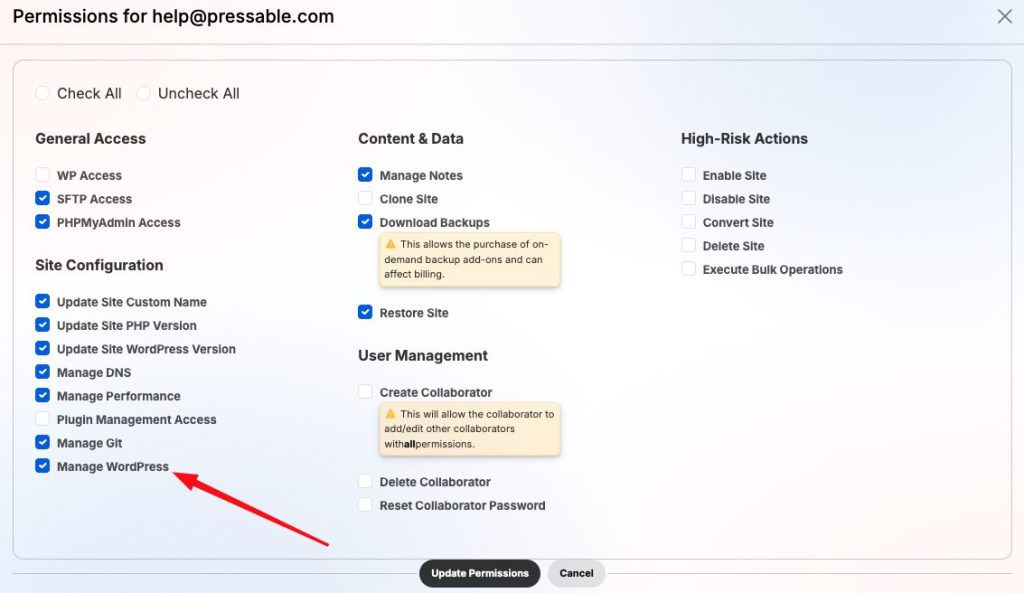
Site owners and Collaborators with the new Manage WordPress permission will have access to this new Plugins & Themes menu on their site’s settings page. This menu includes three sections:
- Themes: Displays all installed themes. Can activate available themes.
- Plugins: Lists all installed plugins. Can activate or deactivate available plugins.
- History: Tracks processes such as refreshing the list and bulk updating items. This section provides a simple log indicating whether the process succeeded or failed.
Note that individual plugin or theme updates are not logged here.
Here’s how the list of themes and plugins appear on MPCP. You can also see the history of the actions performed as well:

This feature does not replace Plugin Management or Scheduling functionalities, as it does not include backups or validation checks. It simply executes the requested action immediately when you click on the action button.
Collaborator Permissions
Collaborators will need to have the Manage WordPress permission enabled to access this feature: