

Pressable’s cloning and staging site functionality allows users to create a duplicate of a site on their account. Clones and WordPress staging environments are useful if you are looking to create a test/development environment or if you are looking to build a new site using an existing site as a starting point.
Select the Site to Clone
To begin, log in to the MyPressable Control Panel and select the site you wish to clone.

Clone Action
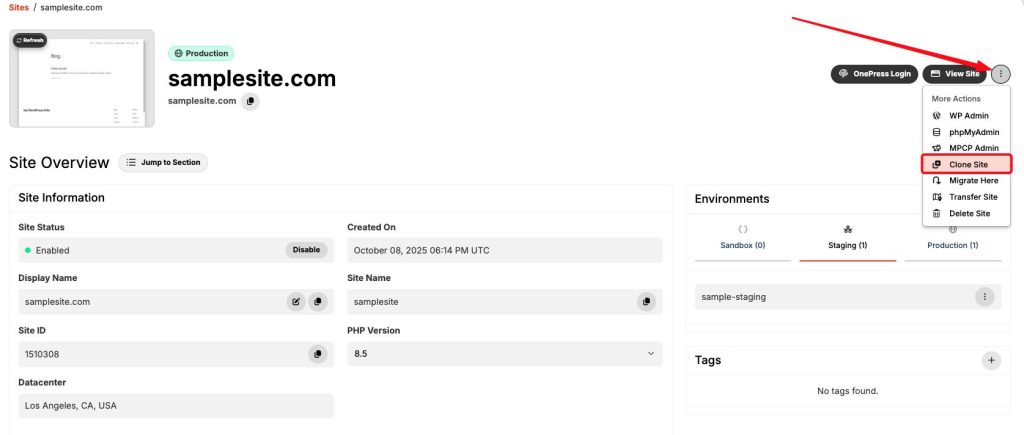
From the “Site Actions” menu button, select the “Clone Site” option.
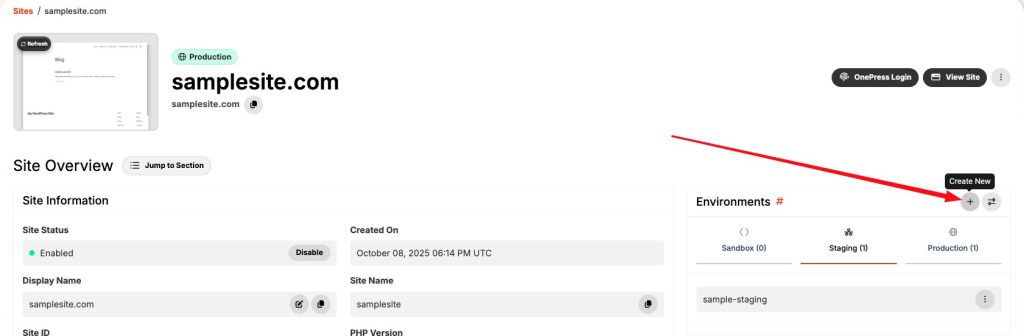
This section can also be accessed by clicking on the “+” in the Environments section of the Site Overview.
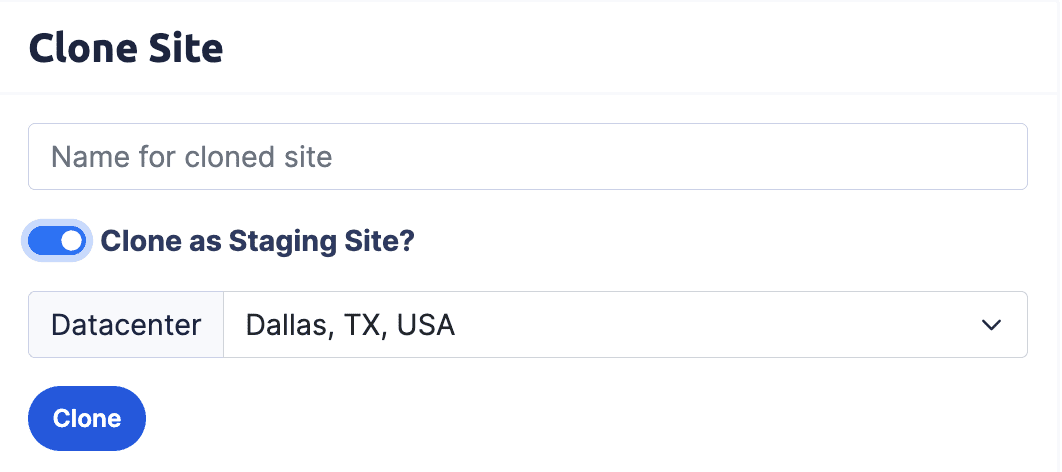
In that section, enter the name of the cloned site you would like. For example, if you are making a development environment, you might add dev to the front of the name. If you are going to make a brand new website with the original as a starting point, give it an appropriate name for the new site.
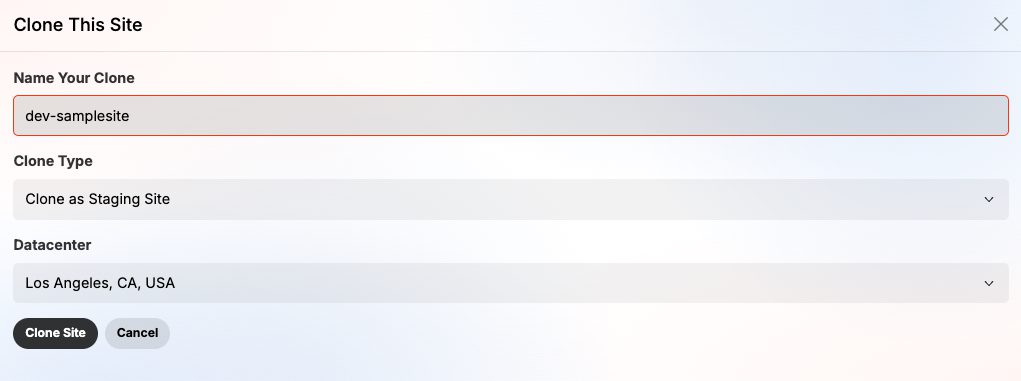
Selecting “Clone as Staging Site” or “Clone as Sandbox Site” prevents the new site from counting towards your overall site limit and also prevent domains from being added to it until it is converted to a live site (more on that at the bottom of this article).
Create as staging
When you create a clone, you have the option to set it as “staging”. The amount of staging sites your account can have is equal to the number of regular sites available on your plan, up to a maximum of 20. For example, if you have a 10 site plan, you will also have 10 staging site spaces – these do not count towards your overall site limit.
If you find yourself needing more than 20 staging sites, please reach out to our Support or Sales teams for help.
Read more about the difference between live sites, staging sites, and clones.
Monitor Clone Status
Once you have clicked “Clone”, the cloning process will begin. You can check the status of the clone from your MyPressable Control Panel. The amount of time a site takes to clone will vary based on the size of the site and its files.

Staging Sites will be marked with a “staging” tag by their site name.
As soon as the clone process is finished, you will receive an email letting you know the process is finished and giving you information related to the new clone site. Please wait for this email before accessing your clone site.
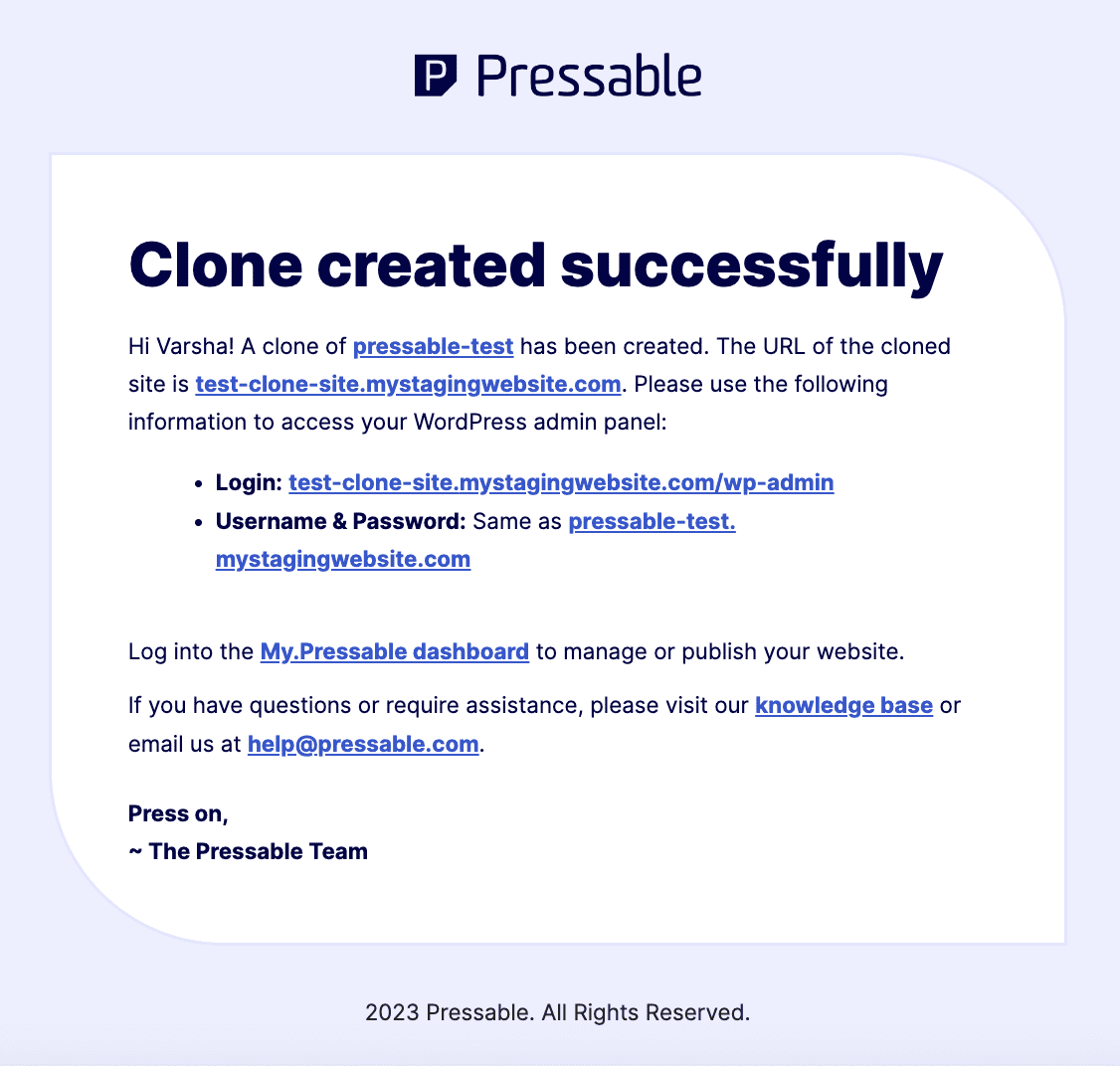
You can also check the MyPressable Control Panel for information relating to the new clone site.
Cross-Site Restores
Cross-Site Restores provide the functionality to create a clone of a site using a backup rather than the current version (for example: take a backup from Site A and place it on Site B).
More information about Cross-Site Restores can be found here.
Staging Site Limitations & Pushing to Production
Staging Sites cannot have domains added to them by default. However, they can be converted to a live site from the Platform Details section of the Site Overview – this will then allow the site to have domains added. Converting the site to a live site will then make it count towards your overall site limit and remove it from your staging site limit.

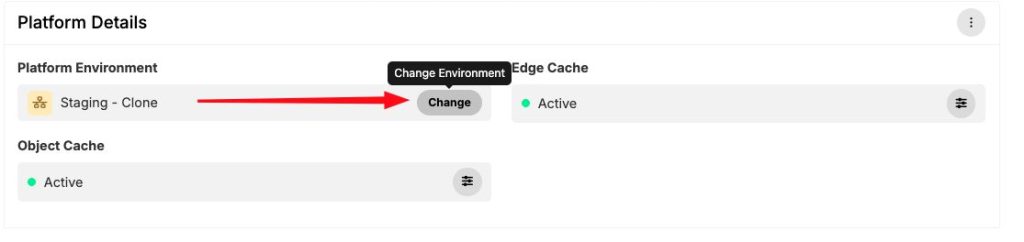

If you are logged in as a Collaborator only the appropriate actions are visible to you based on the user permissions set for your account.
To read more about how to push your staging site into production, please click here.